I run a personal AI assistant on a $5 server. Here's the whole setup.
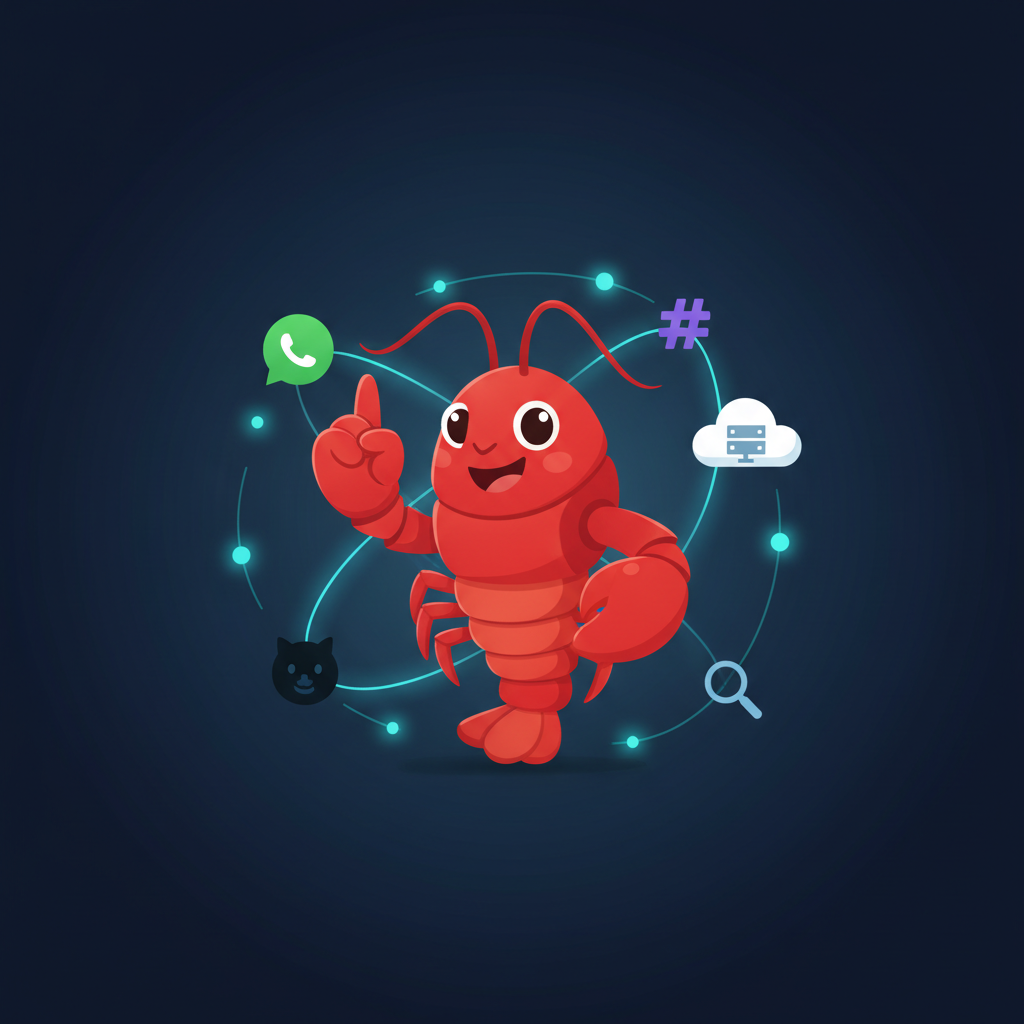
I got tired of juggling ChatGPT, Google Calendar, and a dozen browser tabs whenever I needed to get something done. So I set up OpenClaw, an open-source AI gateway, on a cheap VPS. Now I have a single assistant living in my WhatsApp and Slack that can search the web, read my Gmail, check my calendar, and remember what we talked about last week. The server costs about $5 a month. Everything else is free.
This guide walks through the whole setup.
Useful links: OpenClaw Website | Documentation | GitHub Repository | Qwen Portal (free models)
No prior server experience required. If you can copy-paste commands into a terminal, you can do this.
I pointed Claude Code at this guide and had it do most of the work, creating config files, running commands, fixing errors. That is actually how this entire setup was built.
What you end up with
Here is the architecture:
 ┌─────────────────────────────────────────────────┐
 │              Your Phone / Laptop                 │
 │                                                  │
 │   WhatsApp    Slack    Web UI (via Tailscale)    │
 └──────┬──────────┬─────────┬─────────────────────┘
        │          │         │
        ▼          ▼         ▼
 ┌─────────────────────────────────────────────────┐
 │           Hetzner VPS (CX23, ~€4/mo)            │
 │                                                  │
 │  ┌───────────────────────────────────────────┐   │
 │  │         OpenClaw Gateway (Docker)         │   │
 │  │                                           │   │
 │  │  ┌─────────┐  ┌────────┐  ┌───────────┐  │   │
 │  │  │ Memory  │  │ Brave  │  │  Session   │  │   │
 │  │  │ Search  │  │ Search │  │  Manager   │  │   │
 │  │  └─────────┘  └────────┘  └───────────┘  │   │
 │  └──────────────────┬────────────────────────┘   │
 │                     │                            │
 │      Tailscale (secure mesh VPN)                 │
 └─────────────────────┼───────────────────────────┘
                       │
        ┌──────────────┼──────────────┐
        ▼              ▼              ▼
 ┌────────────┐ ┌────────────┐ ┌────────────┐
 │   Qwen     │ │ OpenRouter │ │  Gemini    │
 │  Portal    │ │   (free    │ │ Embeddings │
 │ (primary)  │ │ fallback)  │ │  (memory)  │
 └────────────┘ └────────────┘ └────────────┘
        │              │
        ▼              ▼
 ┌────────────┐ ┌────────────┐ ┌────────────┐
 │   GitHub   │ │   Brave    │ │  Google    │
 │    CLI     │ │  Search    │ │ Workspace  │
 │ (repos/PRs)│ │   (web)    │ │(Gmail/Cal) │
└────────────┘ └────────────┘ └────────────┘| Component | Details | Cost |
|---|---|---|
| Channels | WhatsApp (second number), Slack, Web UI | Free |
| AI Models | Qwen Portal (primary), OpenRouter free models (fallback) | Free |
| Tools | Brave Search, GitHub CLI, Google Workspace CLI (Gmail, Calendar, Drive, Sheets, Docs) | Free |
| Memory | Semantic search powered by Gemini embeddings | Free |
| Security | Tailscale mesh VPN — web UI only accessible to your devices | Free |
| Server | Hetzner CX23 (2 vCPU, 4 GB RAM, Ubuntu 24.04, Docker) | ~€4/mo |
| Total | ~$5/month |
Table of contents
- Create your accounts
- Set up your SSH key
- Create the server on Hetzner
- Set up the server
- Install OpenClaw
- Add custom tools (GitHub, Google Workspace)
- Connect WhatsApp
- Connect Slack
- Set up memory search (free Gemini embeddings)
- Set up web search (Brave)
- Set up Google Workspace CLI
- Access the web UI
- Set up shortcuts (aliases)
- Day-to-day usage
- Troubleshooting
- Cost summary
1. Create your accounts
Before touching any servers, sign up for the services you will need. Takes about 10 minutes.
OpenRouter (LLM access)
OpenRouter gives you one API key that works with dozens of LLMs, including many free ones.
- Go to openrouter.ai and sign up
- Go to openrouter.ai/keys and click Create Key
- Name it “openclaw” and create it
- Copy the key (it starts with
sk-or-...) and save it somewhere safe
One API key instead of signing up for OpenAI, Google, and Anthropic separately. Many models are free.
Tailscale (secure VPN)
Tailscale creates a private network between your devices. You will use it to access your server without exposing it to the internet.
- Go to tailscale.com and create a free account
- Download and install Tailscale on your Mac/PC from tailscale.com/download
- Open Tailscale and sign in
Hetzner Cloud (VPS hosting)
European cloud provider. Their CX23 plan is 2 CPU cores and 4 GB RAM for about 4.35 EUR/month.
- Go to hetzner.com/cloud and create an account
- Verify your email
- You will need to verify your identity — use your passport for the fastest approval (usually within a minute or two). Other ID types may take longer
Google AI Studio (free Gemini API key)
For the memory/embeddings feature. Gemini’s embedding API allows 1,500 requests/day for free.
- Go to aistudio.google.com/apikey
- Click Create API Key
- Copy and save the key
Brave Search API (web search)
For web search. 2,000 free queries a month.
- Go to brave.com/search/api
- Sign up for the free plan
- Create an API key and save it
2. Set up your SSH key
SSH keys let you log into your server without typing a password every time.
Open Terminal on your Mac (or your terminal app of choice) and check if you already have a key:
cat ~/.ssh/id_ed25519.pubIf you see a long string starting with ssh-ed25519, you already have one. Skip to the “Add it to Hetzner” step.
If you get “No such file or directory”, create one:
ssh-keygen -t ed25519 -C "your-email@example.com"Press Enter for all the prompts. You do not need a passphrase (though adding one is more secure).
Now copy the public key to your clipboard:
cat ~/.ssh/id_ed25519.pub | pbcopyAdd it to Hetzner:
- In the Hetzner Cloud Console, go to your project
- Click Security in the left sidebar, then SSH Keys
- Click Add SSH Key
- Paste your key and give it a name (e.g., “my-macbook”)
- Click Add
Tip: Set up an SSH config shortcut so you do not have to type the IP every time. Add this to
~/.ssh/config:Host openclaw HostName YOUR_SERVER_IP User root IdentityFile ~/.ssh/id_ed25519Then you can just type
ssh openclawinstead ofssh root@65.108.x.x.
3. Create the server on Hetzner
- In the Hetzner Cloud Console, click Add Server
- Configure it:
- Location: Pick the one closest to you (Nuremberg, Helsinki, or Ashburn)
- Image: Ubuntu 24.04
- Type: Shared vCPU > CX23 (2 vCPU, 4 GB RAM) — about 4.35 EUR/month
- SSH Key: Select the key you just added
- Name:
openclaw-gateway
- Click Create & Buy Now
- Note the IP address shown (e.g.,
65.108.x.x) — you will need this
The server will be ready in about 30 seconds.
4. Set up the server
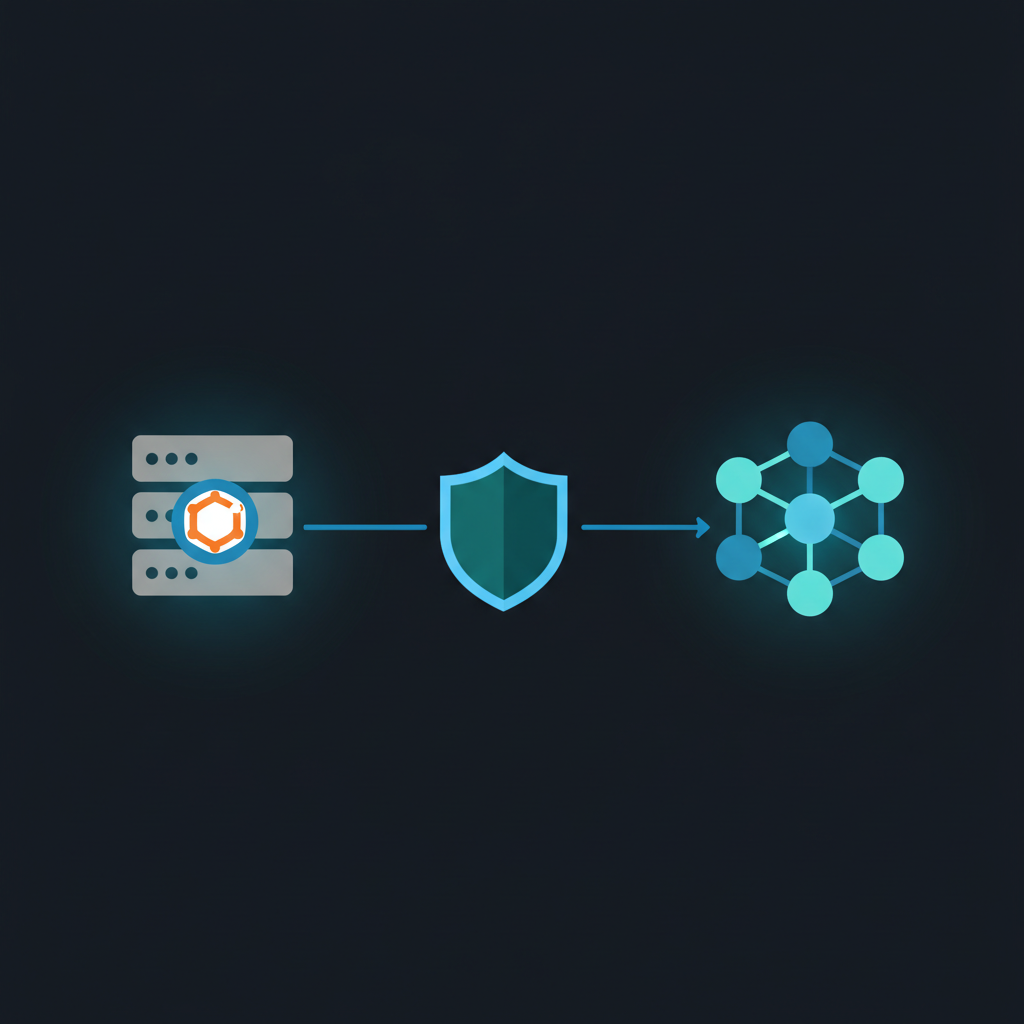
SSH into the server, lock it down, and install Docker.
Log in for the first time
ssh root@YOUR_SERVER_IPType yes when asked about the fingerprint. You are now on your server.
Update the system
apt-get update && apt-get upgrade -ySet up the firewall
UFW blocks all incoming connections except SSH.
ufw default deny incoming
ufw default allow outgoing
ufw allow ssh
ufw enable
Type y when asked to confirm.
Without a firewall, anyone who finds your server’s IP can try to connect to services running on it. This locks it down to SSH and Tailscale only.
Install Tailscale
This creates an encrypted tunnel between your devices. You will use it to reach the OpenClaw web UI without exposing it to the public internet.
curl -fsSL https://tailscale.com/install.sh | sh
tailscale up
It will print a URL. Open that URL in your browser to authorize this machine on your Tailscale network.
Once connected, note the Tailscale IP of your VPS:
tailscale ip -4Save this IP (e.g., 100.x.y.z). You will use it to access the web UI later.
Install Docker
apt-get install -y git curl ca-certificates
curl -fsSL https://get.docker.com | sh
Verify both are installed:
docker --version
docker compose version
You should see version numbers for both. If so, the server is ready.
5. Install OpenClaw
Now the actual thing.
Clone the repository
cd /root
git clone https://github.com/openclaw/openclaw.git
cd openclaw
Create persistent directories
These store config and workspace data outside the container, so nothing is lost on restart or update.
mkdir -p /root/.openclaw/workspace
chown -R 1000:1000 /root/.openclaw
Why
chown 1000:1000? Inside the Docker container, OpenClaw runs as a non-root user (UID 1000). This command gives that user permission to read and write files in these directories.
Generate secrets
Two secret keys: one for the web UI login (GATEWAY_TOKEN), one for encrypting stored credentials (KEYRING_PASSWORD).
Run this command twice and save both outputs:
openssl rand -hex 32- First output = your GATEWAY_TOKEN (used to log into the web UI)
- Second output = your KEYRING_PASSWORD (encrypts stored credentials)
Create the environment file
nano /root/openclaw/.envPaste the following, replacing the three placeholder values:
OPENCLAW_IMAGE=openclaw:latest
OPENCLAW_GATEWAY_TOKEN=PASTE_YOUR_FIRST_SECRET_HERE
OPENCLAW_GATEWAY_BIND=lan
OPENCLAW_GATEWAY_PORT=18789

OPENCLAW_CONFIG_DIR=/root/.openclaw
OPENCLAW_WORKSPACE_DIR=/root/.openclaw/workspace

GOG_KEYRING_PASSWORD=PASTE_YOUR_SECOND_SECRET_HERE
XDG_CONFIG_HOME=/home/node/.openclaw

# API Keys
OPENROUTER_API_KEY=PASTE_YOUR_OPENROUTER_KEY_HERE
GEMINI_API_KEY=PASTE_YOUR_GEMINI_API_KEY_HERE
Save the file: press Ctrl+O, then Enter, then Ctrl+X.
Configure OpenClaw
This is where you pick the AI models. Qwen Portal is the primary (free, no API key needed), OpenRouter is the fallback.
First, enable the Qwen Portal auth plugin:
cd /root/openclaw
docker compose exec openclaw-gateway openclaw plugins enable qwen-portal-auth
Then authenticate with Qwen Portal:
docker compose exec openclaw-gateway openclaw configureChoose Qwen Portal when prompted and follow the OAuth flow. It will give you a URL to open in your browser — sign up at portal.qwen.ai if you do not have an account yet (it is free).
Now create the config file:
nano /root/.openclaw/openclaw.jsonPaste this starter config:
{
  "auth": {
    "profiles": {
      "qwen-portal:default": {
        "provider": "qwen-portal",
        "mode": "oauth"
      }
    }
  },
  "models": {
    "providers": {
      "qwen-portal": {
        "baseUrl": "https://portal.qwen.ai/v1",
        "apiKey": "qwen-oauth",
        "api": "openai-completions",
        "models": [
          {
            "id": "coder-model",
            "name": "Qwen Coder",
            "reasoning": false,
            "input": ["text"],
            "cost": { "input": 0, "output": 0, "cacheRead": 0, "cacheWrite": 0 },
            "contextWindow": 128000,
            "maxTokens": 8192
          },
          {
            "id": "vision-model",
            "name": "Qwen Vision",
            "reasoning": false,
            "input": ["text", "image"],
            "cost": { "input": 0, "output": 0, "cacheRead": 0, "cacheWrite": 0 },
            "contextWindow": 128000,
            "maxTokens": 8192
          }
        ]
      }
    }
  },
  "agents": {
    "defaults": {
      "model": {
        "primary": "qwen-portal/coder-model",
        "fallbacks": [
          "openrouter/free"
        ]
      }
    }
  },
  "plugins": {
    "entries": {
      "qwen-portal-auth": {
        "enabled": true
      }
    }
  }
}
Save: Ctrl+O, Enter, Ctrl+X.
Qwen Portal gives free access to Qwen’s models via OAuth. No API key or credits. The
coder-modelhandles general tasks and coding. If Qwen goes down, OpenClaw falls back toopenrouter/freewhich picks a random free model. Thevision-modelhandles images.
Build and start
cd /root/openclaw
docker compose build
docker compose up -d openclaw-gateway
Verify it is running:
docker compose logs -f openclaw-gatewayLook for a message saying the gateway is listening on port 18789. Press Ctrl+C to stop watching logs.
Your assistant is now running on the server.
6. Add custom tools (GitHub, Google Workspace)
The base image works, but I wanted extra CLI tools. We will add:
gh— GitHub CLI for repos, issues, and PRsgws— Google Workspace CLI for Gmail, Calendar, Drive, Sheets, and Docs
Create a custom Dockerfile
nano /root/openclaw/Dockerfile.customPaste:
ARG OPENCLAW_IMAGE=openclaw:latest
FROM ${OPENCLAW_IMAGE}

USER root

# Install GitHub CLI
RUN apt-get update && apt-get install -y curl gpg && \
    curl -fsSL https://cli.github.com/packages/githubcli-archive-keyring.gpg \
      | gpg --dearmor -o /usr/share/keyrings/githubcli-archive-keyring.gpg && \
    echo "deb [arch=$(dpkg --print-architecture) signed-by=/usr/share/keyrings/githubcli-archive-keyring.gpg] https://cli.github.com/packages stable main" \
      | tee /etc/apt/sources.list.d/github-cli.list > /dev/null && \
    apt-get update && apt-get install -y gh && \
    apt-get clean && rm -rf /var/lib/apt/lists/*

# Install Google Workspace CLI
RUN npm install -g @googleworkspace/cli

USER node
Create a Docker Compose override
Instead of modifying the original docker-compose.yml, use an override file. Docker Compose merges it automatically.
nano /root/openclaw/docker-compose.override.ymlPaste:
services:
  openclaw-gateway:
    build:
      context: .
      dockerfile: Dockerfile.custom
    image: openclaw:custom
    command: ["node", "dist/index.js", "gateway", "--bind", "lan", "--port", "18789", "--allow-unconfigured"]
    environment:
      OPENROUTER_API_KEY: ${OPENROUTER_API_KEY}
      GEMINI_API_KEY: ${GEMINI_API_KEY}
      GOOGLE_WORKSPACE_CLI_CREDENTIALS_FILE: /home/node/.openclaw/gws-credentials.json
When you
git pullto update OpenClaw, the originaldocker-compose.ymlmight change. Your override file will not be touched by git, so your customizations survive updates.
Rebuild
cd /root/openclaw
docker compose build
docker compose up -d openclaw-gateway
7. Connect WhatsApp
You need a second phone number. The assistant takes over the WhatsApp account on that number, and you message it from your primary number. A cheap prepaid SIM works fine.
Link it
cd /root/openclaw
docker compose exec openclaw-gateway openclaw channels login --channel whatsapp
A QR code will appear in your terminal.
Scan the QR code
On the phone with your second WhatsApp number:
- Open WhatsApp
- Go to Settings > Linked Devices > Link a Device
- Scan the QR code showing in your terminal
Restrict who can message it
Lock it down so only you can talk to it.
Edit the config:
nano /root/.openclaw/openclaw.jsonAdd a channels section. Your full config should now look like this:
Add the channels section to your existing openclaw.json (after the closing } of the agents block, before the final }):
"channels": {
  "whatsapp": {
    "enabled": true,
    "dmPolicy": "allowlist",
    "allowFrom": ["+919876543210"],
    "sendReadReceipts": true,
    "ackReaction": {
      "emoji": "eyes",
      "direct": true
    }
  }
}
Replace +919876543210 with your primary phone number (the one you will message FROM), in international format.
ackReactionmakes the bot react with an “eyes” emoji when it receives your message, so you know it is processing.
Restart and test
cd /root/openclaw
docker compose restart openclaw-gateway
Send a WhatsApp message from your primary phone to the second number. The first time, you may need to approve the pairing. After that, the assistant should respond.
8. Connect Slack
Create a Slack app
- Go to api.slack.com/apps
- Click Create New App > From scratch
- Name it “OpenClaw” and select your workspace
- Click Create App
Enable Socket Mode
Socket Mode lets the bot receive messages without a public URL. Good for a firewalled server.
- In your app settings, go to Socket Mode in the left sidebar
- Toggle it On
- When prompted, create an app-level token:
- Name it “openclaw-socket”
- Add the scope
connections:write - Click Generate
- Copy the token (starts with
xapp-...) and save it
Add bot permissions
- Go to OAuth & Permissions in the left sidebar
- Scroll to Bot Token Scopes and add these scopes:
chat:write— send messageschannels:history— read channel messagesgroups:history— read private channel messagesim:history— read DM messagesim:read— view DM infoim:write— open DMsapp_mentions:read— respond when @mentionedreactions:write— add emoji reactionsusers:read— look up user info
Enable event subscriptions
- Go to Event Subscriptions in the left sidebar
- Toggle it On
- Under Subscribe to bot events, add:
message.im— receive DMsmessage.channels— receive channel messagesapp_mention— receive @mentions
- Click Save Changes
Enable the messages tab
This is the step people miss. Without it, the bot cannot receive DMs.
- Go to App Home in the left sidebar
- Scroll to Show Tabs
- Check the box for Messages Tab
- Check Allow users to send Slash commands and messages from the messages tab
Install to workspace
- Go to Install App in the left sidebar
- Click Install to Workspace
- Review and click Allow
- Copy the Bot User OAuth Token (starts with
xoxb-...)
Add Slack to the config
Edit your config:
nano /root/.openclaw/openclaw.jsonAdd a slack section inside the channels block of your openclaw.json:
"slack": {
  "mode": "socket",
  "enabled": true,
  "botToken": "xoxb-YOUR-BOT-TOKEN",
  "appToken": "xapp-YOUR-APP-TOKEN",
  "dmPolicy": "allowlist",
  "allowFrom": ["YOUR_SLACK_USER_ID"],
  "ackReaction": "eyes"
}
Finding your Slack user ID: Click your profile picture in Slack, go to Profile, click the three dots menu, and select Copy member ID.
Restart and test
cd /root/openclaw
docker compose restart openclaw-gateway
Open Slack, find “OpenClaw” under Apps, and send it a direct message.
9. Set up memory search (Gemini embeddings)
This lets your assistant remember past conversations and search them by meaning, not just keywords. Ask “what was that restaurant we talked about?” and it actually finds it.
Uses Google’s gemini-embedding-001 model. Free for up to 1,500 requests per day.
Add to config
If you already added GEMINI_API_KEY to your .env file (step 5), you just need to enable it in the config.
Edit your config:
nano /root/.openclaw/openclaw.jsonAdd the memorySearch section inside agents.defaults:
{
  "agents": {
    "defaults": {
      "model": {
        "primary": "qwen-portal/coder-model",
        "fallbacks": [
          "openrouter/free"
        ]
      },
      "memorySearch": {
        "provider": "gemini"
      }
    }
  },
  "channels": {
    ...
  }
}
Restart
cd /root/openclaw
docker compose up -d openclaw-gateway
Use
docker compose up -d(not justrestart) after changing.envordocker-compose.override.yml.restartdoes not pick up environment variable changes.
10. Set up web search (Brave)
Edit your config:
nano /root/.openclaw/openclaw.jsonAdd a tools section at the top level:
{
  "agents": {
    ...
  },
  "channels": {
    ...
  },
  "tools": {
    "web": {
      "search": {
        "provider": "brave",
        "apiKey": "YOUR_BRAVE_API_KEY"
      }
    }
  }
}
Replace YOUR_BRAVE_API_KEY with the key you got from Brave.
Restart:
cd /root/openclaw
docker compose restart openclaw-gateway
Now you can ask things like “What happened in tech news today?” and it will search the web.
11. Set up Google Workspace CLI
This gives your assistant access to Gmail, Calendar, Drive, Sheets, and Docs. You authenticate on your local machine first, then copy the credentials to the server.
Install gws locally
On your Mac (not the server):
npm install -g @googleworkspace/cliAuthenticate
gws auth login -s drive,gmail,calendar,sheets,docsThis opens a browser window. Sign in with your Google account and grant the requested permissions.
Export the credentials
gws auth export --unmasked > gws-credentials.jsonThis creates a file with your Google auth tokens.
Copy to server
scp gws-credentials.json root@YOUR_SERVER_IP:/root/.openclaw/gws-credentials.jsonThen fix the file permissions on the server:
ssh root@YOUR_SERVER_IP "chown 1000:1000 /root/.openclaw/gws-credentials.json"Verify
The GOOGLE_WORKSPACE_CLI_CREDENTIALS_FILE env var was already set in docker-compose.override.yml (step 6), so after restarting it should work.
cd /root/openclaw
docker compose restart openclaw-gateway
Try asking your assistant “What events do I have on my calendar today?” or “Check my latest emails.”
Google tokens expire periodically. If the assistant reports auth errors, repeat the
gws auth loginandgws auth exportsteps on your Mac and re-copy the file.
12. Access the web UI
OpenClaw has a built-in web interface for chatting, viewing history, and changing settings.
Option A: via Tailscale (recommended)
Since both your Mac and the VPS are on Tailscale, just open this URL from any browser:
http://YOUR_VPS_TAILSCALE_IP:18789/Replace YOUR_VPS_TAILSCALE_IP with the Tailscale IP you noted earlier (the 100.x.y.z address).
Enter your GATEWAY_TOKEN to log in.
The firewall blocks all public connections. Tailscale creates an encrypted peer-to-peer tunnel, so only your devices can reach port 18789.
Option B: via SSH tunnel
If you do not want to use Tailscale, you can create an SSH tunnel:
ssh -N -L 18789:127.0.0.1:18789 root@YOUR_SERVER_IPLeave that running, then open http://localhost:18789/ in your browser.
13. Set up shortcuts (aliases)
The Docker commands are long. Aliases fix that.
SSH into your server and run:
cat >> ~/.bashrc << 'EOF'

# OpenClaw shortcuts
alias openclaw="cd /root/openclaw && docker compose exec openclaw-gateway node dist/index.js"
alias restart-gateway="cd /root/openclaw && docker compose restart openclaw-gateway"
alias gateway-logs="cd /root/openclaw && docker compose logs -f openclaw-gateway"
alias gateway-status="cd /root/openclaw && docker compose ps"
alias update-gateway="cd /root/openclaw && git pull && docker compose build && docker compose up -d openclaw-gateway"
EOF
source ~/.bashrc
Now you can just type:
| Shortcut | What it does |
|---|---|
restart-gateway | Restart after editing openclaw.json |
gateway-logs | Watch live logs (press Ctrl+C to stop) |
gateway-status | Check if the gateway is running |
update-gateway | Pull latest code and restart |
openclaw | Run any OpenClaw CLI command (e.g. openclaw memory status) |
An alias is a nickname for a long command.
gateway-logsinstead ofcd /root/openclaw && docker compose logs -f openclaw-gateway.
14. Day-to-day usage
Once everything is running:
gateway-status to check if it is running. gateway-logs to see what it is doing.
After changing openclaw.json: restart-gateway.
After changing .env or docker-compose.override.yml, you need to recreate the container, not just restart:
cd /root/openclaw && docker compose up -d openclaw-gatewayA restart reloads config but keeps the same container. Env vars are baked in at creation time, so you need
up -dto pick up changes.
To update OpenClaw: update-gateway. Pulls latest code, rebuilds, and restarts.
15. Troubleshooting
WhatsApp not responding?
cd /root/openclaw
docker compose exec openclaw-gateway openclaw channels status
If the session has expired, you will need to re-scan the QR code:
docker compose exec openclaw-gateway openclaw channels login --channel whatsappSlack bot gets mentions but not DMs?
Go back to your Slack app settings at api.slack.com/apps:
- Open App Home
- Make sure Messages Tab is enabled
- Check Allow users to send Slash commands and messages from the messages tab
Slack bot does not respond at all?
- Verify Socket Mode is enabled
- Verify Event Subscriptions is enabled with the correct events (
message.im,message.channels,app_mention) - Check that both the
botToken(xoxb-…) andappToken(xapp-…) are in your config
Gateway will not start?
Check the logs:
cd /root/openclaw && docker compose logs openclaw-gatewayCommon causes:
- Invalid JSON in
openclaw.json— use a JSON validator - Missing environment variables in
.env - Port already in use — do not duplicate port mappings in the override file
Model returns 402 (Payment Required)?
The model needs credits. Switch to a free one:
"primary": "qwen-portal/coder-model"Or use "openrouter/free" which automatically routes to an available free model. Models with :free in the name are also always free.
Memory search not working?
If you added GEMINI_API_KEY to .env after the container was already running, recreate the container (not just restart):
cd /root/openclaw && docker compose up -d openclaw-gatewayrestart does not reload env vars. up -d does.
Cannot access the web UI?
- Tailscale: make sure it is running on both your Mac and the VPS.
tailscale statuson each. - SSH tunnel: make sure the tunnel command is still running. If you closed it, run it again.
16. Cost summary
| Component | Monthly Cost |
|---|---|
| Hetzner CX23 (2 vCPU, 4 GB RAM) | ~4.35 EUR |
| Tailscale | Free |
| OpenRouter (free models) | $0 |
| Gemini Embeddings (1,500 req/day free) | Free |
| Brave Search API (2,000 queries/mo free) | Free |
| Total | ~$5/month |
Free model options on OpenRouter
Some I have tried:
| Model | Context | Good For |
|---|---|---|
openrouter/free | 200k | Auto-routes to best available free model |
stepfun/step-3.5-flash:free | 256k | Fast reasoning, large context |
nvidia/nemotron-3-nano-30b-a3b:free | 256k | Agentic tasks, tool use |
arcee-ai/trinity-large-preview:free | 131k | Creative writing, tool use |
arcee-ai/trinity-mini:free | 131k | Efficient reasoning, function calling |
deepseek/deepseek-v3.2 | 164k | Strong reasoning, coding |
openrouter/free automatically picks an available free model for each request.
Upgrading
When you want better models, no infrastructure changes needed:
- Add credits at openrouter.ai/credits
- Change the model name in
openclaw.json:
"primary": "openrouter/anthropic/claude-sonnet-4"- Restart:
docker compose restart openclaw-gateway
That’s it
The whole setup takes about an hour. After that, it just runs. You will occasionally SSH in to update or re-link WhatsApp if the session expires, but that is about it.
The nice part is how modular it is. Want Telegram? OpenClaw supports it. Want Claude instead of Qwen? Change one line. Want more tools? Extend the Dockerfile. The $5/month server is yours to mess with.
Links
| Resource | Link |
|---|---|
| OpenClaw Website | openclaw.ai |
| Documentation | docs.openclaw.ai |
| GitHub Repository | github.com/openclaw/openclaw |
| Qwen Portal (free models) | portal.qwen.ai |
| OpenRouter (model marketplace) | openrouter.ai |
| Hetzner Cloud | hetzner.com/cloud |
| Tailscale (mesh VPN) | tailscale.com |
| Brave Search API | brave.com/search/api |
| Google AI Studio (Gemini keys) | aistudio.google.com |
| Google Workspace CLI | github.com/googleworkspace/cli |